

Projektaufgaben
Create and assign tasks for translating or proofreading content to specific project members or vendors. You can set due dates, split words among assignees, receive notifications about task changes and updates, and discuss tasks with other project members in the comments.
To create a new task, follow these steps:
- 59–50
- Klicke oben rechts auf Aufgabe erstellen.
- Lege die Aufgabenparameter fest:
- Title – specify the name of the task that will be visible to translators or proofreaders.
- Description (optional) – add any additional details that may be helpful.
- Type – select between Translate by own translators, Proofread by own proofreaders, Translate by vendor, and Proofread by vendor.
Wenn „Vom Dienstleister übersetzen“ oder „Vom Dienstleister Korrektur lesen“ für automatisierte Dienstleister (z. B. Crowdin Language Services, BLEND oder Gengo) ausgewählt ist, stehen neben dem Dropdown-Menü „Übersetzungsdienstleister“ zusätzliche Optionen zur Verfügung:- Einstellungen – Konfiguriere die Konto- oder Zahlungseinstellungen für den ausgewählten Dienstleister.
- Im Store anzeigen – Details des Dienstleisters im Store anzeigen.
- Create a pending proofreading task (only for translation tasks) – creates a separate proofreading task that starts once the translation is completed.
- Preceding task (only for proofreading tasks) – link the task to a previously created translation task to inherit its scope and language settings.
- Skip strings already included in other tasks – skip strings that are already assigned to other tasks. This option is enabled by default.
- Aufgabenstatus This template will be used by default for generating task reports and will be displayed in the task details for transparency, visible to the project owner and managers. Click to add a new template, or click to modify the selected one.
- Create Cost Estimate Report – automatically generate a Cost Estimate report after the task is created or edited.
- Create Translation Cost Report – automatically generate a Translation Cost report when the task status is changed to Done or Closed.
- Stringfilter – Lege fest, welche Strings in die Aufgabe aufgenommen werden sollen:
- Gehe folgendermaßen vor, um den Lokalisierungsfortschritt der erstellten Aufgaben zu verfolgen:
- Nach Labels filtern (optional) – Wähle ein oder mehrere Labels aus, um nur Strings mit den angegebenen Labels einzubeziehen. Wähle anschließend die Übereinstimmungsregel aus:
- Alle ausgewählten Labels – Bezieht nur Strings ein, die alle ausgewählten Labels haben (UND-Logik).
- Mindestens ein ausgewähltes Label – Bezieht nur Strings ein, die mindestens eines der ausgewählten Labels haben (ODER-Logik).
- Nach Labels ausschließen (optional) – Wähle ein oder mehrere Labels aus, um Strings mit den angegebenen Labels auszuschließen. Wähle anschließend die Übereinstimmungsregel aus:
- Alle ausgewählten Labels – Schließt nur Strings aus, die alle ausgewählten Labels haben (UND-Logik).
- Mindestens ein ausgewähltes Label – Schließt Strings aus, die mindestens eines der ausgewählten Labels haben (ODER-Logik).
- Include auto-translated strings only (only for proofreading tasks) – include only strings that were previously auto-translated.
- Due Date (optional) – set a deadline.
- Files – select files to include in the task.
- Sprachen – Wähle die Zielsprachen aus (für jede ausgewählte Sprache wird eine separate Aufgabe erstellt). Öffne dein Projekt und gehe zum Tab Aufgaben.
- Click Assign to assign users to the task for each language separately.
- (Optional) Use a saved template to apply language and member assignment settings, or save the current configuration for future use.
- Klicke auf den Aufgabennamen, um sie zu öffnen.
- 59–50
- Klicke oben rechts auf Aufgabe erstellen.
- Lege die Aufgabenparameter fest:
- Title – specify the name of the task that will be visible to translators or proofreaders.
- Description (optional) – add any additional details that may be helpful.
- Type – select between Translate by own translators, Proofread by own proofreaders, Translate by vendor, and Proofread by vendor.
Wenn „Vom Dienstleister übersetzen“ oder „Vom Dienstleister Korrektur lesen“ für automatisierte Dienstleister (z. B. Crowdin Language Services, BLEND oder Gengo) ausgewählt ist, stehen neben dem Dropdown-Menü „Übersetzungsdienstleister“ zusätzliche Optionen zur Verfügung:- Einstellungen – Konfiguriere die Konto- oder Zahlungseinstellungen für den ausgewählten Dienstleister.
- Im Store anzeigen – Details des Dienstleisters im Store anzeigen.
- Create a pending proofreading task (only for translation tasks) – creates a separate proofreading task that starts once the translation is completed.
- Preceding task (only for proofreading tasks) – link the task to a previously created translation task to inherit its scope and language settings.
- Skip strings already included in other tasks – skip strings that are already assigned to other tasks. This option is enabled by default.
- Aufgabenstatus This template will be used by default for generating task reports and will be displayed in the task details for transparency, visible to the project owner and managers. Click to add a new template, or click to modify the selected one.
- Create Cost Estimate Report – automatically generate a Cost Estimate report after the task is created or edited.
- Create Translation Cost Report – automatically generate a Translation Cost report when the task status is changed to Done or Closed.
- Stringfilter – Lege fest, welche Strings in die Aufgabe aufgenommen werden sollen:
- Gehe folgendermaßen vor, um den Lokalisierungsfortschritt der erstellten Aufgaben zu verfolgen:
- Nach Labels filtern (optional) – Wähle ein oder mehrere Labels aus, um nur Strings mit den angegebenen Labels einzubeziehen. Wähle anschließend die Übereinstimmungsregel aus:
- Alle ausgewählten Labels – Bezieht nur Strings ein, die alle ausgewählten Labels haben (UND-Logik).
- Mindestens ein ausgewähltes Label – Bezieht nur Strings ein, die mindestens eines der ausgewählten Labels haben (ODER-Logik).
- Nach Labels ausschließen (optional) – Wähle ein oder mehrere Labels aus, um Strings mit den angegebenen Labels auszuschließen. Wähle anschließend die Übereinstimmungsregel aus:
- Alle ausgewählten Labels – Schließt nur Strings aus, die alle ausgewählten Labels haben (UND-Logik).
- Mindestens ein ausgewähltes Label – Schließt Strings aus, die mindestens eines der ausgewählten Labels haben (ODER-Logik).
- Include auto-translated strings only (only for proofreading tasks) – include only strings that were previously auto-translated.
- Due Date (optional) – set a deadline.
- Branches – select branches to include in the task.
- Sprachen – Wähle die Zielsprachen aus (für jede ausgewählte Sprache wird eine separate Aufgabe erstellt). Öffne dein Projekt und gehe zum Tab Aufgaben.
- Click Assign to assign users to the task for each language separately.
- (Optional) Use a saved template to apply language and member assignment settings, or save the current configuration for future use.
- Klicke auf den Aufgabennamen, um sie zu öffnen.
Mehr über Projekttypen erfahren.
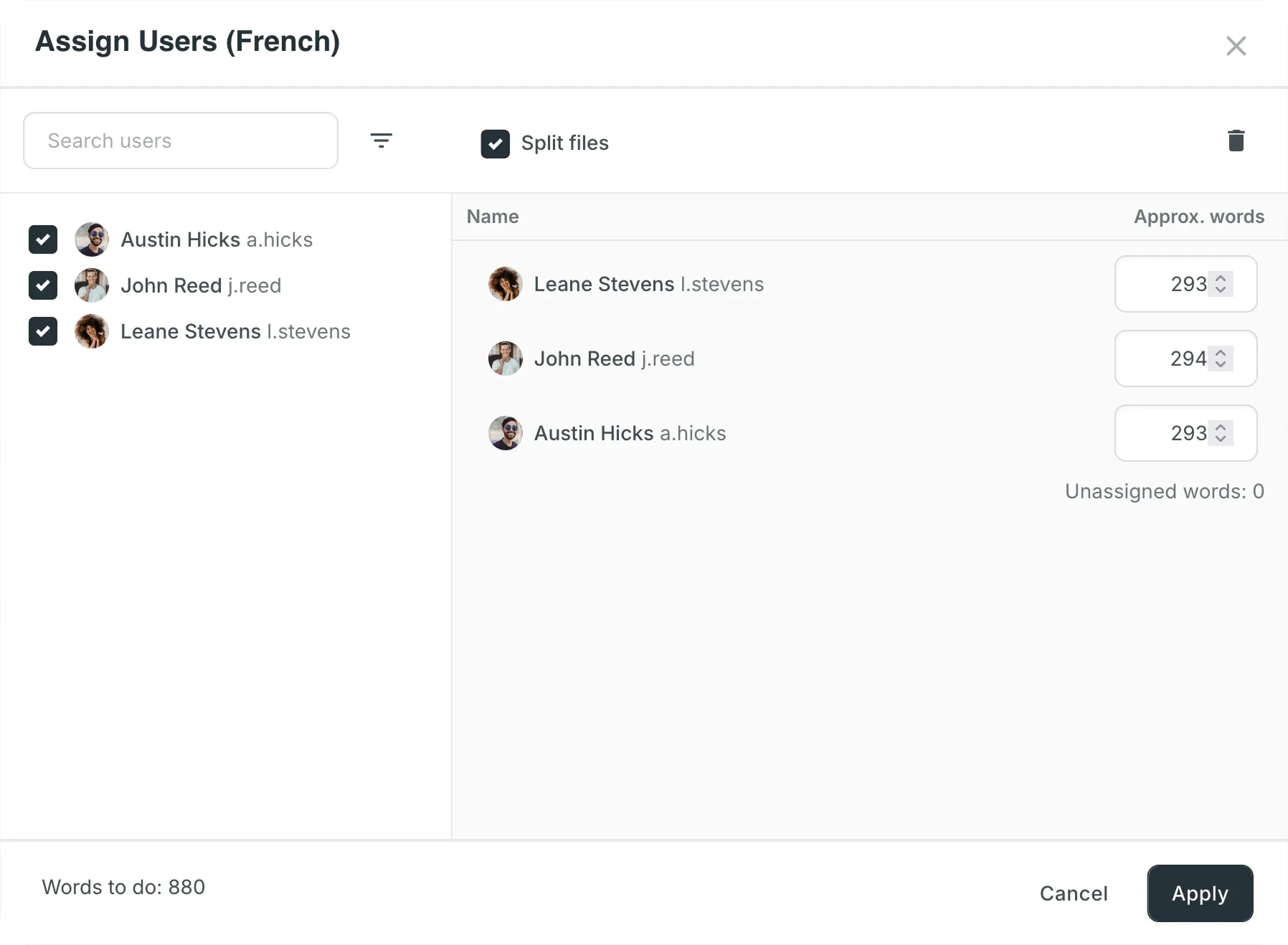
Splitting content between several members allows you to speed up the translation or proofreading process.
While in string-based and file-based projects this option is called differently (i.e., Split strings and Split files), the basic principle of its behavior remains the same.
Im Bereich Details siehst du den Anbieter-Projektstatus: You can set the approximate amount of words for each assignee. Warten auf Zahlung – die Lokalisierungsservices wurden nicht bezahlt
Zahlung wird verarbeitet – die Zahlung wird von Fastspring, dem Zahlungspartner von Crowdin, verarbeitet
In Bearbeitung – die Zahlung wurde verarbeitet und die Mitarbeiter von Crowdin Language Services arbeiten an der Aufgabe
Abgeschlossen – die Aufgabe wurde vollständig abgeschlossen The costs are also displayed directly on the task card in the Board section. Hover over on a task card to view both the Estimated cost and Actual cost.
Open the task to view the following cost-related information:
- Rates Template: Displays the name of the applied template. Project managers can click the template name to open the Edit rates template dialog and view or modify its parameters (e.g., Base rates, Custom rates, Net Rate Schemes).
- Estimated cost: If the Create Cost Estimate Report option was selected, this report is generated automatically after the task is created or updated. If the task scope changes (e.g., files or strings are modified), a new Cost Estimate report will be generated automatically to reflect the updated estimate.
- Actual cost: If the Create Translation Cost Report option was selected, this report is generated automatically once the task is moved to the Done or Closed status.
Once generated, both the estimated and actual cost sections will display the calculated cost based on the selected rates template, a clickable report name (e.g., Report #123) that links to the full report in the Archive section, and the report generation date. If a report has not been generated yet, a Not generated yet message will be displayed instead, along with a Generate option to quickly create it.
You can manually generate or regenerate reports for an existing task at any time. Du kannst im Bereich Kommentare Details zu einer bereits erstellten Aufgabe hinzufügen.
To view a detailed breakdown, click the report name (e.g., Report #123) under the Estimated or Actual cost. The full report will open in a new browser tab. Within the opened report, click Rate Schema to review the specific rates applied during its generation.
If the underlying rates or the assigned rate template are modified after a report has been generated, a Rates Mismatch label will appear next to the Estimated or Actual cost. This label indicates that the current template configuration differs from the one used to generate the report, meaning the displayed costs might be outdated.
To resolve the mismatch and update the costs, click the report name and regenerate the report. The system will apply the latest rates, and the Rates Mismatch label will disappear.
Use task templates to save the configuration of the Languages section, including target languages and member assignments. Templates help you quickly apply these configurations when creating new tasks, saving time and ensuring consistency.
To save the language and member assignment settings as a template, follow these steps:
- In the Languages section, click Save as.
- Select New template from the drop-down menu.
- In the dialog that appears, enter a name for your template.
- Click Save.
Your template is now saved and available for future tasks.
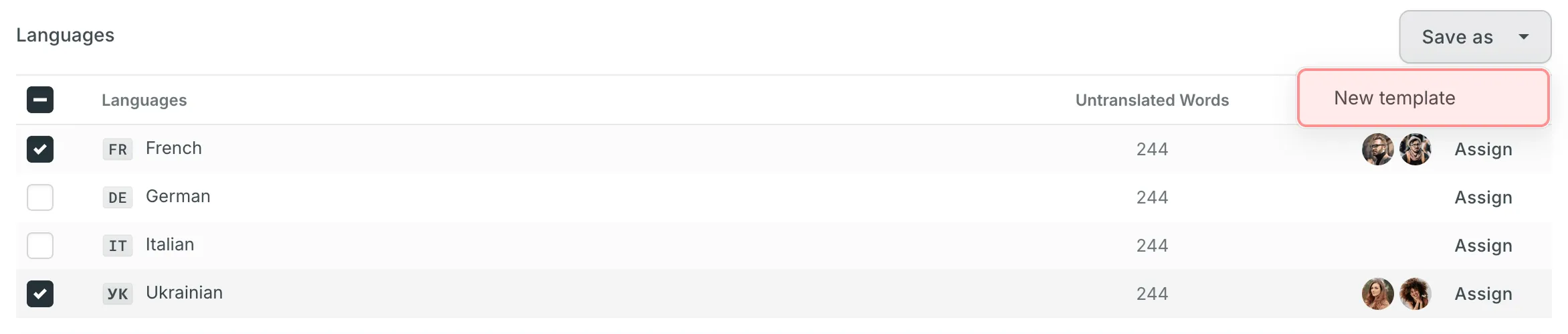
To apply a saved template to a new task, follow these steps:
- In the Languages section, click on the template name to apply it immediately.
- Die Kommentare sind für den an der Aufgabe arbeitenden Übersetzer sichtbar und dieser kann dort antworten.
To rename or delete a saved template, follow these steps:
- Aufgaben zum Übersetzen oder Korrekturlesen von Inhalten erstellen und zuweisen.
- Select one of the following options:
- Rename – Enter a new name for your template.
- Delete – Permanently remove the template.
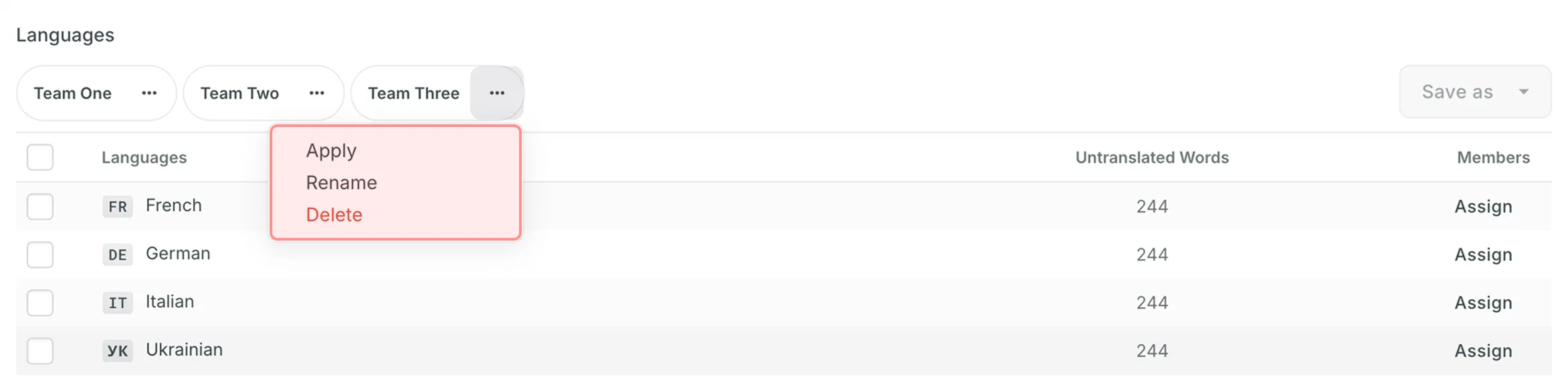
Im Tab Aufgaben kannst du alle Projektaufgaben in den folgenden beiden Bereichen anzeigen: Board, Alle Aufgaben.
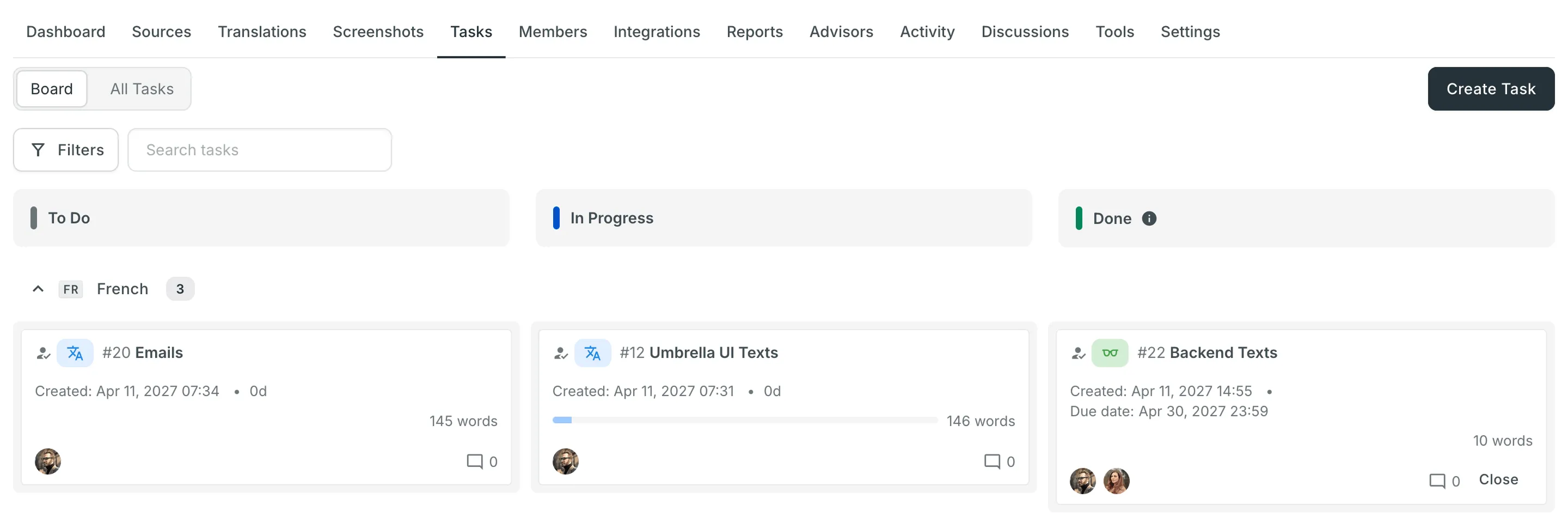
In the Board section, tasks are organized into three columns: To Do, In Progress, and Done. This layout provides a clear view and visualization of the current status of all tasks. Innerhalb jeder Spalte werden die Aufgaben zusätzlich nach Zielsprachen gruppiert. Jede Zielsprachengruppe kann eingeklappt werden, um Aufgabenkarten auszublenden, oder ausgeklappt werden, um sie anzuzeigen. Diese Funktion ist besonders nützlich, um die Ansicht übersichtlicher zu gestalten und dich auf bestimmte Sprachen zu konzentrieren.
Verwende das Feld Aufgaben suchen, um Aufgaben nach Namen zu suchen oder Aufgaben zu filtern, indem du verschiedene Filteroptionen verwendest. To view the task details, open it by clicking on the task name.
The All Tasks section provides a list view of all project tasks. It is particularly useful for efficiently managing large volumes of tasks. From this view, you can select multiple tasks to perform bulk actions, such as changing assignees, updating statuses, or deleting tasks.
Wie im Bereich Board kannst du auch in der Ansicht Alle Aufgaben das Feld Aufgaben suchen verwenden und filtern. Außerdem kannst du die Aufgabenliste mithilfe der verfügbaren Sortieroptionen (ID, Erstellt am, Begonnen am, Abgeschlossen am, Fälligkeitsdatum) aufsteigend oder absteigend sortieren.
You can also choose which columns are displayed. Klicke auf Spalten, um optionale Spalten ein- oder auszublenden – Erstellt am, Begonnen am und Abgeschlossen am sind standardmäßig ausgeblendet. Die Spalten Typ, ID und Titel sind immer sichtbar und können nicht ausgeblendet werden.
From the All Tasks view, you can generate a Cost Estimate or Translation Cost report for one or more specific tasks. This allows you to quickly assess costs without having to manually select tasks on the report generation page.
To generate a report for selected tasks, follow these steps:
- In the All Tasks view, select the desired tasks using the checkboxes. You can use filters to narrow down the list before selection.
- Klicke oben rechts auf .
- Select Cost estimate or Translation cost from the drop-down menu.
You will then be redirected to the corresponding report generation page with the selected tasks pre-filled, where you can configure and generate the report.
To change the task details, follow these steps:
- 59–50
- Klicke im Bereich Board oder Alle Aufgaben auf den Namen der Aufgabe, die du ändern möchtest.
- Klicke in der Aufgabendetailansicht oben rechts auf und wähle Bearbeiten.
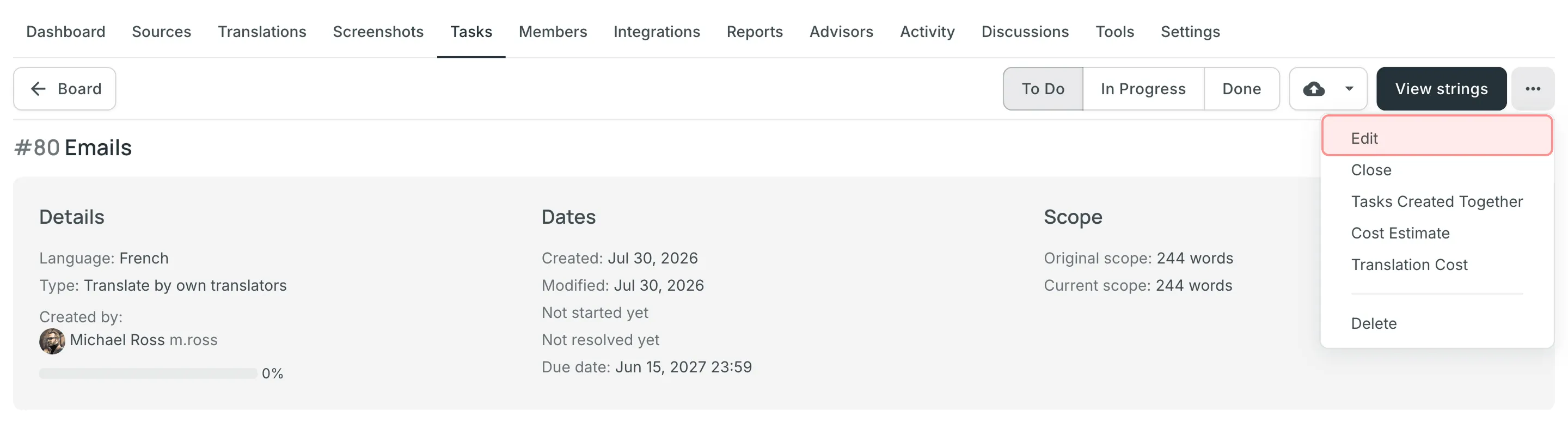
- Make the necessary edits and click Save.
How do the source file updates affect the existing translation and proofreading tasks?
After the source file update, the list of source strings included in the task will be updated in the following way:
- The strings removed from the source file during the update will be removed from the task.
- The modified strings marked with the Keep Translations option will appear in the task with the new modified text.
- The newly added strings won’t affect the existing task in any way.
If the source file is restored to the revision containing the removed strings, they will reappear in the task.
When you open a task, its details display the word scope:
- Original scope – the number of words included in the task when it was created.
- Current scope – the number of words currently included in the task.
After a task is created, its scope may change if the source strings included in the task are edited or removed in the project. When the current scope differs from the original one, a icon appears next to the Current scope value. Hover over it to see how much the scope has changed (e.g., Scope reduced by 30 words).
When you create tasks for multiple languages at once, they are generated as a single batch. To easily find and navigate between all tasks from the same batch, you can use the Tasks Created Together option.
To view tasks created together, follow these steps:
- Open any task from the batch.
- Klicke oben rechts auf .
- Select Tasks Created Together.
You will be redirected to the All Tasks section with a batchId filter (e.g., batchId:123456) automatically applied in the search field. This view will display only the tasks that were generated during that specific creation process.
Standardmäßig werden alle Projektaufgaben im Tab Aufgaben entweder im Bereich Board oder Alle Aufgaben angezeigt. If necessary, you can filter tasks using the available filter options:
- Type: All types, Translate by own translators, Proofread by own proofreaders, Translate by vendor, Proofread by vendor.
- Assignee: All users or particular user.
- Created by: All users or particular user.
- Sprache: Alle Sprachen oder eine bestimmte Sprache.
- File: All files or particular file or folder.
- Fälligkeitsdatum: Alle, Jetzt überfällig, Benutzerdefinierter Zeitraum.
- Erstellt am: Alle, Heute, Gestern, Letzte 7 Tage, Letzte 30 Tage, Dieser Monat, Letzter Monat, Benutzerdefinierter Zeitraum.
- Begonnen am: dieselben Datumsoptionen wie bei „Erstellt am“.
- Abgeschlossen am: dieselben Datumsoptionen wie bei „Erstellt am“.
- Status: Alle Status, Zu erledigen, In Bearbeitung, Erledigt, Geschlossen, Ausstehend.
Die Filter Begonnen am, Abgeschlossen am und Status sind nur in der Ansicht Alle Aufgaben verfügbar.
To change the task status in the Board section, select the task assigned to you and drag it to the column with the status you need.
To change the task status in the All Tasks section, select the needed task, click Change status, and select the new status.
Alternativ kannst du in einem der beiden Bereiche den Aufgabenstatus direkt in der Aufgabe mithilfe der entsprechenden Schaltflächen ändern: Zu erledigen, In Bearbeitung, Erledigt.
Um die Aufgabe nach Abschluss zu schließen, verschiebe sie in die Spalte Erledigt und klicke unten auf der Aufgabenkartе auf Schließen.
To view the list of closed tasks, open the All Tasks section and use the filter Status: Closed.
Sequential tasks streamline the management of translation and proofreading processes in a structured, step-by-step manner. This feature is particularly useful for managing content that requires translation followed by proofreading, ensuring a smooth workflow.
Once created, sequential tasks are represented on the Tasks Board, displaying both the translation task and its linked pending proofreading task.
The concept of sequential tasks is based on two primary approaches:
- Creating a translation task with its associated pending proofreading task:
- Start by creating a translation task and specifying the target languages and work scope.
- Select Create a pending proofreading task to generate the associated proofreading task. You can set separate due dates for the translation and proofreading tasks if needed.
- Während Übersetzer an der Übersetzungsaufgabe arbeiten, bleibt die verknüpfte Korrekturleseaufgabe ausstehend und zeigt auf ihrer Karte den Hinweis Warten auf Abschluss der Übersetzungsaufgabe an.
- When the translation task is completed, the status of the associated proofreading task changes from Pending to To Do. Proofreaders will then receive notifications that it’s ready for review.
- Creating a proofreading task and linking it to a translation task:
- Create a proofreading task and select the translation task you want to link it with from the Preceding task drop-down menu. You can link it to either a completed or an active translation task.
- The languages and work scope are automatically inherited from the linked translation task.
- The proofreading task remains pending until the linked translation task is completed.
- As with the first approach, proofreaders receive notifications when the proofreading task is ready for review.
Sequential tasks are available for the following task types:
- Translate by own translators
- Proofread by own translators
- Vom Dienstleister übersetzen:
- Crowdin-Sprachdienste
- Dienstleister, die den Übersetzungsprozess mit einem eigenen Manager verwalten
- Vom Dienstleister Korrektur lesen lassen:
- Crowdin-Sprachdienste
- BLEND
- Dienstleister, die den Übersetzungsprozess mit einem eigenen Manager verwalten
- When editing a pending proofreading task, changes are limited to fields that do not affect the scope of the task.
- Pending proofreading tasks can be deleted if necessary. In this case, linked translation tasks are preserved.
- Deleting a translation task with an associated sequential proofreading task results in the deletion of both tasks simultaneously.
Wenn die aufgabenbasierte Zugriffskontrolle aktiviert ist, haben Übersetzer und Korrekturleser schreibgeschützten Zugriff auf den Editor und können nur über ihnen zugewiesene Aufgaben mit Strings arbeiten. On language pages, users see a notice that active access to strings is available only through assigned tasks. If they try to open content outside those tasks in the Editor, it will be available in read-only mode.
Im Tab Aufgaben können Benutzer weiterhin Aufgabenkarten anzeigen, aktive Aktionen (Übersetzen oder Korrekturlesen) jedoch nur innerhalb der ihnen zugewiesenen Aufgaben ausführen. Regular language permissions are not used to grant translation or approval access while this option is enabled.
This restriction applies to translators and proofreaders. Project members with language coordinator permissions or higher keep access according to their roles. For example, a translator with permission to work on French who is assigned to a task in German can work in the Editor only within the assigned German task, while having read-only access to French strings.