

Translation and Proofreading by Vendor
Esta página aún no está disponible en tu idioma.
Translate in CrowdinTranslation by Vendor and Proofreading by Vendor are the workflow steps designed to get translations and approvals from vendors you cooperate with.
Adding Translation by Vendor and Proofreading by Vendor to Your Workflow
Section titled “Adding Translation by Vendor and Proofreading by Vendor to Your Workflow”You can add Translation by Vendor and Proofreading by Vendor to your project workflow in the workflow editor or the Workflow template editor.
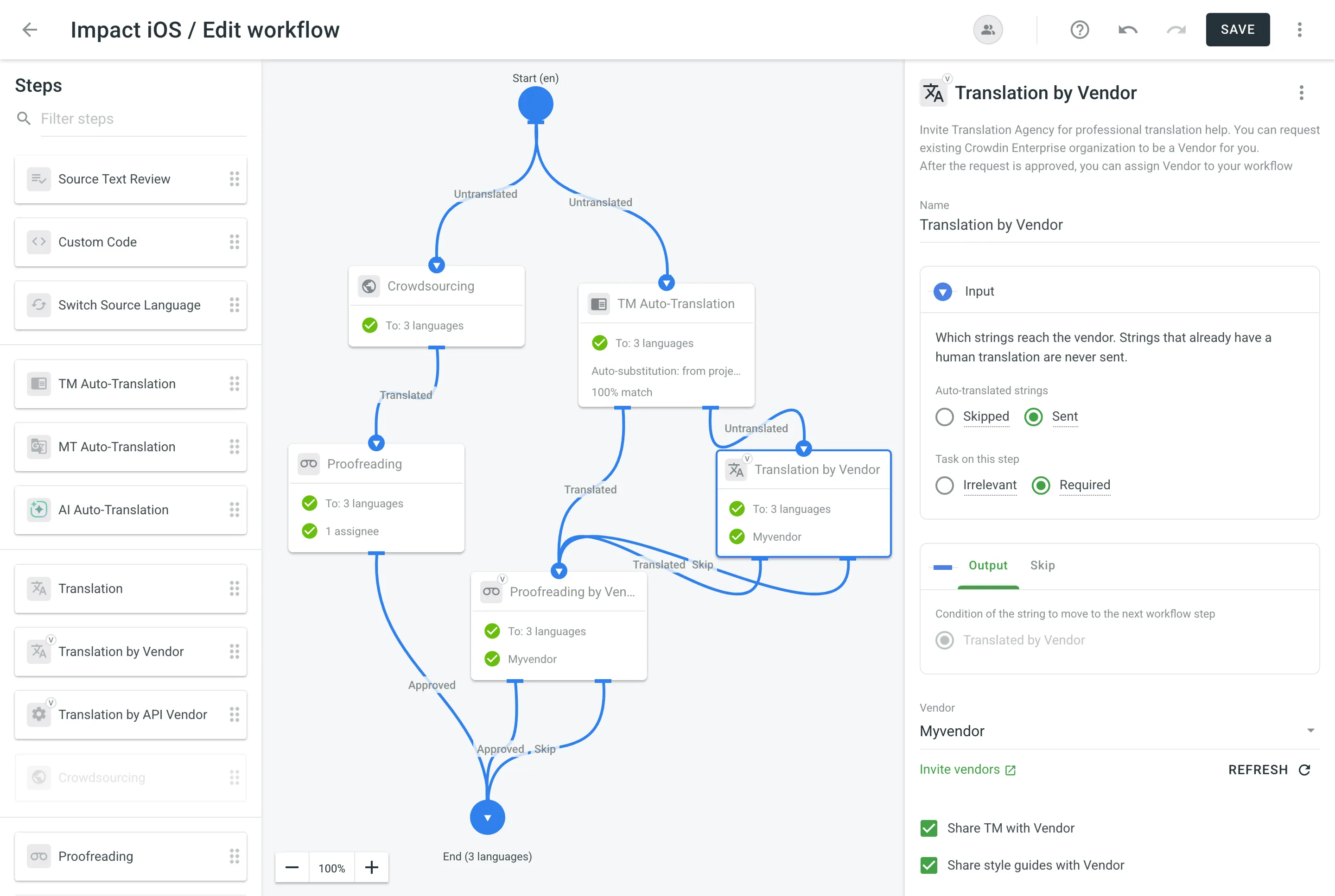
Configuring Translation by Vendor and Proofreading by Vendor
Section titled “Configuring Translation by Vendor and Proofreading by Vendor”Once you added the Translation by Vendor workflow step to your project workflow, click the step in the workflow editor to open its settings on the right. There you can configure the following parameters:
- Name – You can specify the needed name for the Translation by Vendor step. By default, it’s Translation by Vendor.
- Input – Set which strings reach the vendor. Only strings without a human translation are sent.
- Auto-translated strings: Select Skipped to send only strings with no translation at all, or Sent to send auto-translated strings along with the untranslated ones.
- Task on this step: Select Irrelevant to send all strings available on this step, whether they are in a task or not, or Required to send only strings in tasks created on this step.
- Vendor – Select the vendor you’d like to assign to the workflow step. Read more about Inviting an Existing Organization to be Vendor.
- Share TM with Vendor – Enable this option to share your Translation Memory with the assigned vendor. This allows the vendor to leverage your existing translations, ensuring consistency and potentially reducing costs.
- Share style guides with Vendor – Enable this option to share your style guides with the assigned vendor. This ensures that the vendor has access to your brand’s tone and style guidelines, helping maintain consistency across translations.
- Comment (Optional) – Add a comment that will be visible to the assigned vendor.
- Languages – Select the languages that require translations.
You can also view the conditions of the string when it goes through the Output (string translated by vendor) and the Skip (string wasn’t translated by the vendor and skipped the workflow step).
Similar settings also apply to the Proofreading by Vendor workflow step. The difference is in the Input parameter, where only strings that already have a translation are sent:
- Approved strings: Select Skipped to send only strings that no one has approved, or Sent to send approved strings along with the rest. A string counts as approved if anyone has approved it, on any workflow step.
- Task on this step: Select Irrelevant to send all strings available on this step, whether they are in a task or not, or Required to send only strings in tasks created on this step.
What happens to the string if it was translated by both the vendor and client?
There are two possible scenarios:
- If the first translation of the string was added by the client, such string goes through the Skip output of the Translation by Vendor workflow step on the client’s side, and this string is removed from the vendor’s incoming project.
- If the first translation of the string was added by the vendor, such string goes through the Output of the Translation by Vendor workflow step on the client’s side, and this string remains in the vendor’s incoming project.
Sending the Vendor Only the Content from the Tasks
Section titled “Sending the Vendor Only the Content from the Tasks”Both the Translation by Vendor and Proofreading by Vendor workflow steps let you control the content that will be sent to the vendor for translation and proofreading. This is especially useful when you have a defined budget for localization that should not be exceeded.
First of all, you should configure the inputs of the Translation by Vendor and Proofreading by Vendor workflow steps by setting Task on this step to Required.
Then each time you’d like to send content to your vendor for translation and proofreading, you should create tasks selecting specific files on a specific workflow step. As a result, all the strings that meet the criteria configured on the Translation by Vendor and Proofreading by Vendor workflow steps will be included in the tasks and sent to the vendor.
Each of these tasks also appears in the vendor’s project, where the vendor can track how much of its content has already arrived.
Read more about Tasks and Shared Tasks.